links: |
VaySoft Video to EXE Converter ( AVI to EXE Converter) Single License price for one computer: $45
Do you want to share video files with friends or show video data to your customer, the best way to ensure everyone can view the video is to convert the video file to self-running EXE file. Are you struggling to copyright protection of your video product? VaySoft Video to EXE Converter can help you. VaySoft Video to EXE Converter is an application that will help you convert Video file to self-running EXE file. The EXE file can be copied to any computer and will run on Windows 2000, XP, 2003 Server ,Vista, Win 7 without any additional program files installed. VaySoft Video to EXE Converter can help you generate Personalized output exe file. For example you can set private icon images for output exe file and configure your picture images before or after playing the video. The image support not only JPG, BMP,EMF but also PNG and GIF file, so, you can make your own irregular or animated welcome interface. VaySoft Video to EXE Converter encrypt the original Video file, the output EXE files get the video information through memory stream, so your users cannot get it in his/her computer hard disk, This feature will strongly protect your video, it can prevent users from getting the original video file. VaySoft Video to EXE Converter has registration feature, only permitted person can view the video.When the output EXE runs for the first time, a dialogbox will popup to ask for the registration key. If key is correct, EXE will continue to open the presentation. Otherwise, EXE cannot open the video. VaySoft Video to EXE Converter can set play time limit, you can set various time expiry for your video file. VaySoft Video to EXE Converter can convert video such as avi, wmv file, and also convert audio such as wma file, if you want to convert other video format, your users must install correct codec, you can tell your user how to download and install the codec in the image displayed before opening the EXE. Support: AVI to EXE, WMV to EXE, MPEG to EXE, MPE to EXE, etc. The output video exe only can play video that windows media player can play. The effect is same as window media player. If your end user cannot play the video correctly, maybe he does not install corresponding Codec. There is three option for you: 1. Convert you video to another format that all windows media player version can play, such as ASF,WMV, etc. The effect and quality is good enough. In this case, your end users need not install any codec, it is inside in window media player already. 2. Ask you end users install certain codec that can let windows media player play your video format. If you do not know which codec is, you can recommend your end user download the Free K-Lite Mega Codec Pack it support most of video formats. 3. You can visit www.videotoexe.com, the product in this website can convert a video to exe that does not require your end user install any Codec. You can try it. |
|
FAQ: How to convert video file to EXE file? How to set the registration key for the output EXE file? How to generate the registration key? How large video file can you support? Can I add Digital Signatures into output video exe? My end user are not english man, Do you have any other language version? I want to make a protected video exe, only permited person can play the video. How can I do it?
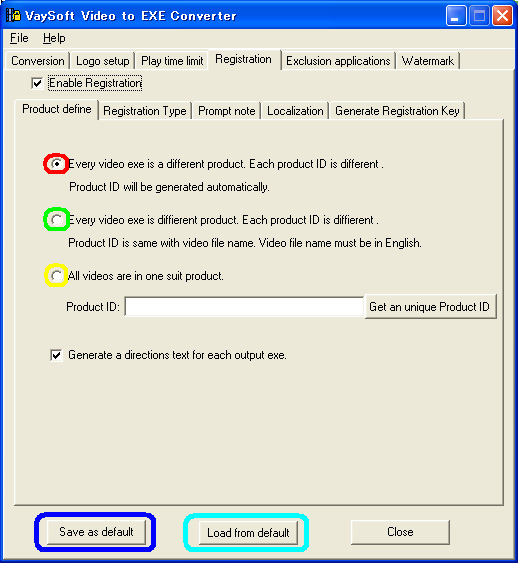
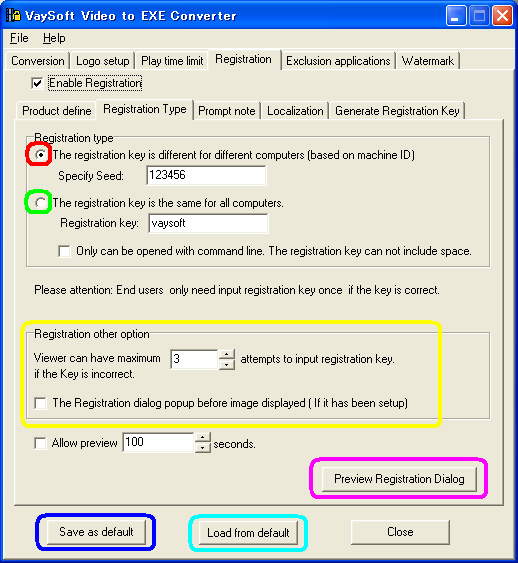
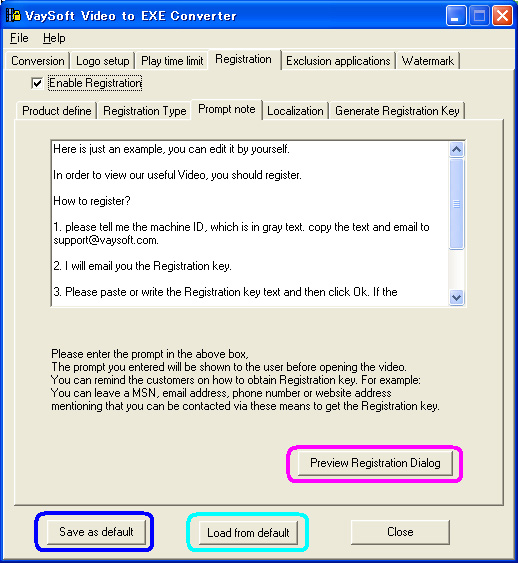
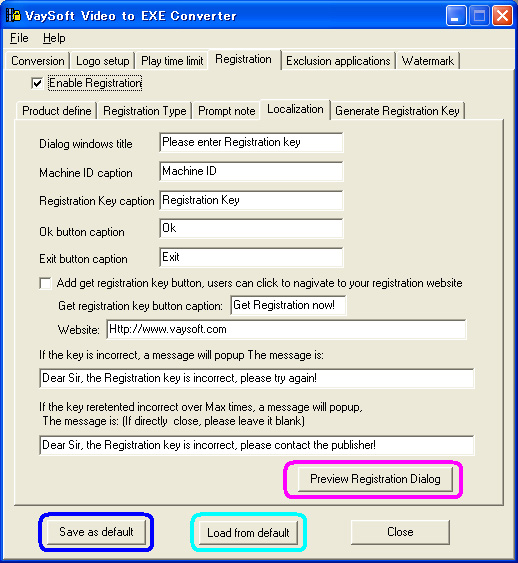
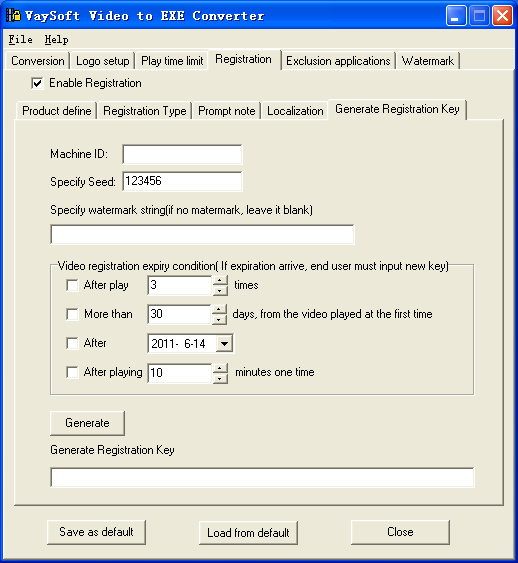
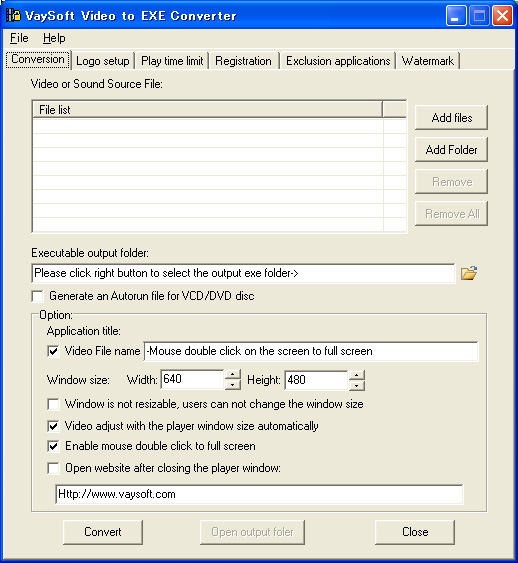
1. Select the “conversion” bar 1) Click the right button of “Add File” to select the video file you want convert. 2) Click the right button of “Executable output folder ” to specify the path which the EXE file outputs. 3) You can personalized your EXE file by “option”. Give the name of your video or write operation tips, define the size of the video player window, and so on. 2. Select the “logo setup” bar 1) Setup the logo of the output EXE file. 2) Specify the images and the effects of the images before and after playing the video. 3. If you want to set play time limit for your video, select "play time limit" bar and then click the left side checkbox of “Enable play time limit ” 1)Set "video expiry condition", you can choose one or multi conditions at one time. 2)Decide "If expiry condition arrives", what will be done in the next step. when you want a website or a message appear, tape the website and the message. 4. If you want to set a Registration key for the output EXE file, select the “Registration” bar and then click the left side box of “Enable Registration” 1) Select “Registration Type” bar, define the registration type. 2) Select “Prompt note” bar, edit the prompt of registration. 3) Select “Localization” bar, edit the items of the registration dialog. 5. Select the “conversion” bar, click the button “convert”, after the conversion, you can click the button “preview” to preview the converted EXE file.
Step 1
Step 2
Step 3
Step 4
When you convert a video to exe with registration enabled, the output exe has a product id. if the output exes product id are same, it means the output exe is in a suit. if your uses input correct registration keyany in one exe, the other exes will not need input registration key again.
If you video file is smaller than 2G, it will work ok after convert to exe.
Yes, you can. If you add it to output video exe, you can: Increase adoption and distribution of video exe downloads
There is no converter in any other language except English. but you can generate out video exe whit other language . Almost all message in output exe can be redifine, button caption in localzation tab can also setup. If you think its original message or information is not acceptable, you can change it as you like even with any other language of your own.
Almost all message in output exe can be redifine, if you think its original message or information is not acceptable, you can change it as you like. In your case, you can change 'registration key to 'password' in Localization tab.
You can just check off 'Enable time limit' in Play time limit tab, check off '"Enable Registration' in Registration tab and then convert. The output exe is what you want.
In your case, firstly you can check on 'Enable time limit' in Play time limit tab, check off '"Enable Registration' in Registration tab, check on 'Add a try button' and then convert. The output exe is trial version video exe. Secondly, you can check off 'Enable time limit' in Play time limit tab, check on '"Enable Registration' in Registration tab and then convert. The output exe is full version video exe. After he input correct registration key, he can play the video in certation computer. You can check off 'Enable time limit' in Play time limit tab, check on '"Enable Registration' in Registration tab and then convert. The output exe is what you want.
You can check on 'Enable time limit' in Play time limit tab, check on '"Enable Registration' in Registration tab and then convert. check on 'Add a try button' in Localization tab. The output exe is what you want.
You can check on ' Add get registration key'.
|